WordPress Security: Complete Guide to Protect Your Site in 2026
Secure your WordPress website from hackers. Plugins, best practices, backups, and security measures every site needs.

Introduction
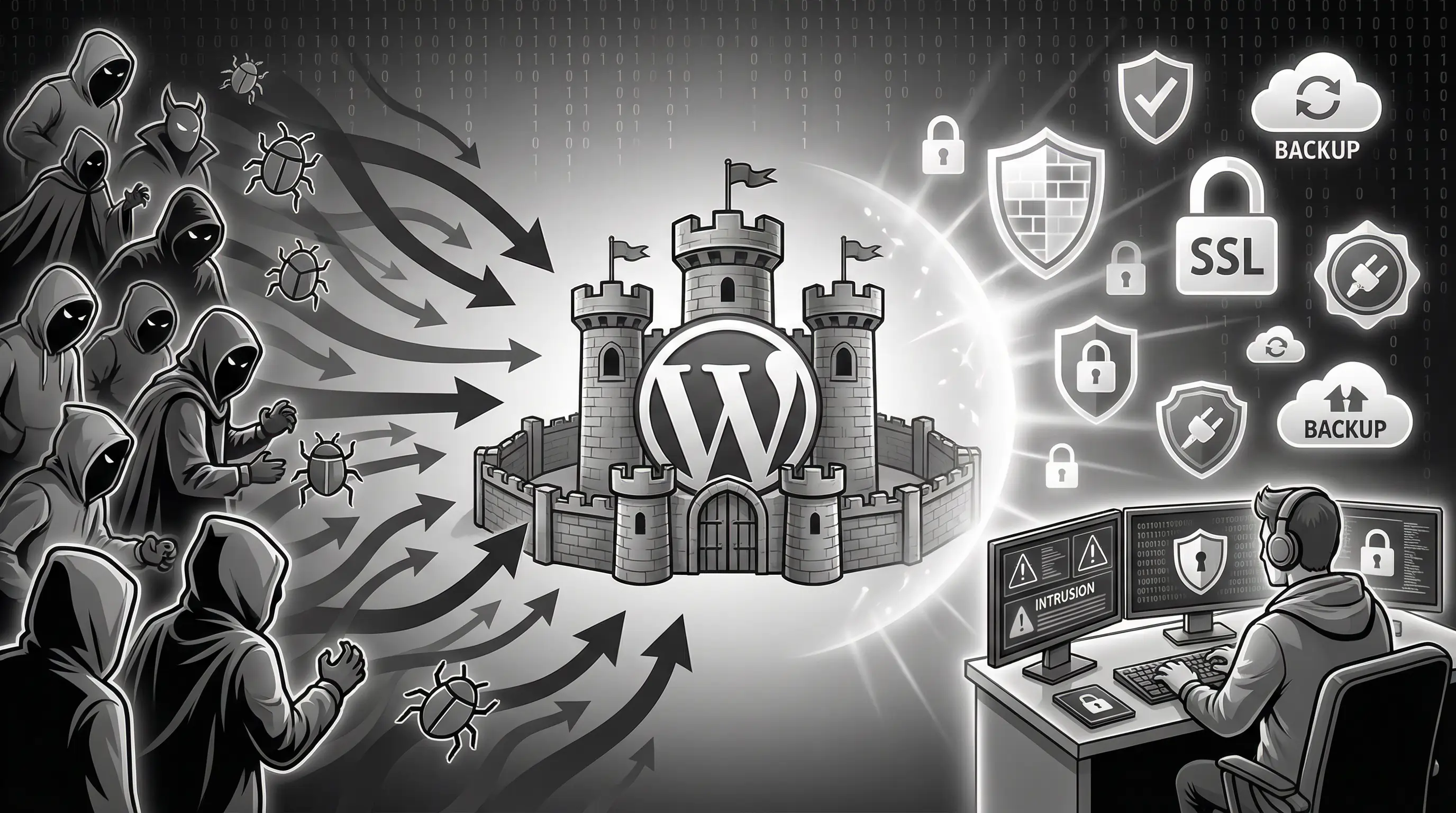
Your WordPress site just got hacked.
That's the message no website owner wants to see. But it happens to 90,000 WordPress sites every single day. Yes, you read that right — 90,000 daily.
Here's the scarier part: Most site owners don't even know they've been hacked until Google blacklists them, their hosting suspends the account, or customers complain about weird redirects to gambling sites.
But wait — before you panic and switch platforms, understand this: WordPress isn't insecure. It powers 43% of all websites globally. The problem? Most people don't follow basic security practices. It's like leaving your house door open and blaming the lock manufacturer when someone walks in.
This guide will show you exactly how to secure your WordPress site. Not paranoid-level security that makes your site unusable, but practical steps that block 99% of attacks while keeping your site fast and user-friendly.
Let's lock down your site properly.
Why WordPress Sites Get Hacked
Understanding how sites get compromised helps you prevent it. Here are the main entry points:
1. Outdated Software (60% of hacks)
Running WordPress 5.8 when 6.4 is available? That's like using Windows XP in 2026. Every update patches security holes. Hackers know these holes and scan for outdated sites.
2. Weak Passwords (8% of hacks)
"password123" or "admin@123" won't cut it. Brute force attacks try millions of password combinations. Weak passwords fall in minutes.
3. Vulnerable Plugins/Themes (52% of hacks)
That free plugin you downloaded from a random site? It might have backdoors. Even legitimate plugins can have vulnerabilities if not updated.
4. Cheap Hosting (15% of hacks)
₹99/month hosting means you're sharing a server with thousands of sites. If one gets hacked, yours might be next. Cheap hosts also skimp on security measures.
5. No Security Plugin (25% of hacks)
Running WordPress without security plugins is like driving without seatbelts. You might be fine, until you're not.
Average recovery cost: ₹50,000-2,00,000. Lost revenue during downtime: ₹10,000-10,00,000. Reputation damage: Priceless. Prevention costs: ₹5,000/year. Do the math.
Essential Security Measures (Quick Wins)
Let's start with security steps you can implement in the next hour:
1. Change Default "admin" Username
If your username is "admin," change it NOW. Hackers try "admin" first in brute force attacks.
How to change:
- Create new administrator account with unique username
- Log in with new account
- Delete old "admin" account
- Attribute all content to new account
2. Use Strong Passwords Everywhere
Minimum password requirements:
- 12+ characters
- Mix of uppercase, lowercase, numbers, symbols
- Unique for each account
- No dictionary words or personal info
Use a password manager like Bitwarden or 1Password. Generate passwords like: K#9mP!xQ2$vL7@nR
3. Limit Login Attempts
By default, WordPress allows unlimited login attempts. Hackers can try millions of passwords. Limit this.
Install: Limit Login Attempts Reloaded (free plugin)
- 3 attempts, then 20-minute lockout
- 4 lockouts = 24-hour ban
- Whitelist your IP to avoid locking yourself out
4. Hide WordPress Version
WordPress broadcasts its version number. Hackers use this to identify vulnerable versions.
Add to your theme's functions.php:
// Remove WordPress version
remove_action('wp_head', 'wp_generator');

// Remove version from RSS
add_filter('the_generator', '__return_empty_string');

// Remove version from scripts and styles
function remove_version_scripts_styles($src) {
    if (strpos($src, 'ver=')) {
        $src = remove_query_arg('ver', $src);
    }
    return $src;
}
add_filter('style_loader_src', 'remove_version_scripts_styles', 9999);
add_filter('script_loader_src', 'remove_version_scripts_styles', 9999);
5. Disable File Editing
WordPress allows editing plugin/theme files from admin panel. If hackers get in, they can inject malicious code easily.
Add to wp-config.php:
define('DISALLOW_FILE_EDIT', true);6. Protect wp-config.php
This file contains database credentials. Protect it.
Add to .htaccess:
<files wp-config.php>
order allow,deny
deny from all
</files>
Security Plugins: Your First Line of Defense
Security plugins automate protection and monitoring. Here are the best options:
Wordfence Security (Recommended)
Free version includes:
- Firewall protection
- Malware scanner
- Login security
- Live traffic monitoring
- IP blocking
Premium adds: Real-time threat defense, country blocking, advanced manual blocking
Price: Free or $99/year
Sucuri Security
Strengths:
- Website firewall (WAF)
- Malware removal
- Blacklist monitoring
- DDoS protection
Price: Free basic plugin or $199/year for platform
iThemes Security
Good for:
- Beginners (easy interface)
- One-click security fixes
- Regular security checkups
Price: Free or $99/year
All In One WP Security
Features:
- Security scoring system
- User-friendly interface
- Database security
- File system security
Price: Free (no premium version)
Don't install multiple security plugins — they conflict with each other. Choose one and configure it properly. Wordfence is our top recommendation for most sites.
Backup Strategy: Your Safety Net
Backups don't prevent hacks, but they save you when prevention fails. No backup = potential total loss.
The 3-2-1 Backup Rule
- 3 copies of your data
- 2 different storage media
- 1 offsite backup
Backup Plugins
UpdraftPlus (Recommended)
- Free version handles most needs
- Scheduled automatic backups
- Remote storage (Google Drive, Dropbox, S3)
- Easy restoration
BackWPup
- Complete WordPress backups
- Database and file backups
- Multiple destination options
VaultPress (Jetpack)
- Real-time backups
- Automated security scanning
- One-click restore
- Price: $9.95/month
Backup Best Practices
- Frequency: Daily for active sites, weekly for static sites
- Storage: Never store only on same server
- Testing: Test restore process quarterly
- Retention: Keep 30 days of backups minimum
Advanced Security Hardening
Ready for next-level security? Implement these:
1. Change Database Table Prefix
Default WordPress uses wp_ prefix. Hackers know this. Change it to something unique like a7x9k_
Use plugins like "Change Table Prefix" or do it manually (backup first!).
2. Implement Two-Factor Authentication (2FA)
Even if password is compromised, 2FA stops unauthorized access.
Plugins:
- Two Factor Authentication
- Google Authenticator
- Wordfence (includes 2FA)
3. Set Correct File Permissions
Wrong file permissions let hackers modify files.
Correct permissions:
- Folders: 755
- Files: 644
- wp-config.php: 600
Never use 777 permissions!
4. Disable XML-RPC
XML-RPC enables remote connections but is rarely needed and often exploited.
Add to .htaccess:
# Block XML-RPC
<Files xmlrpc.php>
order deny,allow
deny from all
</Files>
5. Secure wp-includes
Add to .htaccess:
# Block access to wp-includes
<IfModule mod_rewrite.c>
RewriteEngine On
RewriteBase /
RewriteRule ^wp-admin/includes/ - [F,L]
RewriteRule !^wp-includes/ - [S=3]
RewriteRule ^wp-includes/[^/]+.php$ - [F,L]
RewriteRule ^wp-includes/js/tinymce/langs/.+.php - [F,L]
RewriteRule ^wp-includes/theme-compat/ - [F,L]
</IfModule>
6. Add Security Headers
Add to .htaccess:
# Security Headers
Header set X-Content-Type-Options "nosniff"
Header set X-Frame-Options "SAMEORIGIN"
Header set X-XSS-Protection "1; mode=block"
Header set Referrer-Policy "no-referrer-when-downgrade"
SSL Certificate: Non-Negotiable in 2026
SSL isn't just for e-commerce anymore. Every site needs HTTPS.
Why SSL Matters
- Encrypts data between server and browser
- Google ranking factor
- Browser warnings for non-SSL sites
- Required for many features
- Builds user trust
Getting SSL
- Free: Let's Encrypt (most hosts provide)
- Paid: ₹1,000-10,000/year for advanced certificates
Most quality hosts include free SSL. If yours doesn't, consider switching.
Implementing SSL
- Install certificate (usually one-click in hosting panel)
- Update WordPress URL to https://
- Install "Really Simple SSL" plugin
- Update all internal links
- Set up redirects from http to https
Hosting Security: The Foundation
Your hosting provider is your first defense line. Cheap hosting = weak security.
Security Features to Look For
- Daily malware scanning
- Web Application Firewall (WAF)
- DDoS protection
- Automatic WordPress updates
- Isolated accounts
- Regular server patches
- SSL included
Recommended Secure Hosts
| Host | Starting Price | Key Security Features |
|---|---|---|
| Cloudways | $10/month | Dedicated firewall, regular patches, free SSL |
| SiteGround | ₹499/month | AI anti-bot system, daily backups, WAF |
| Kinsta | $35/month | Google Cloud, DDoS protection, malware removal |
| WP Engine | $25/month | Managed security, threat detection, daily backups |
Maintenance: Ongoing Security
Security isn't set-and-forget. Regular maintenance prevents vulnerabilities.
Weekly Tasks
- Check for WordPress core updates
- Update plugins and themes
- Review security plugin alerts
- Check error logs
- Monitor uptime
Monthly Tasks
- Full security scan
- Review user accounts (remove inactive)
- Check backup integrity
- Review 404 errors
- Analyze traffic for suspicious patterns
Quarterly Tasks
- Security audit
- Test backup restoration
- Review and update security rules
- Remove unused plugins/themes
- Update PHP version
What to Do If You Get Hacked
Despite precautions, hacks can happen. Here's your action plan:
Immediate Steps
- Don't panic — Stay calm and systematic
- Take site offline — Maintenance mode to prevent damage
- Contact hosting — They might have clean backups
- Change all passwords — WordPress, hosting, FTP, database
- Scan for malware — Use security plugin's scanner
Recovery Process
- Identify infection type — Malware, defacement, or backdoor?
- Clean infected files — Compare with clean backup
- Update everything — Core, plugins, themes
- Harden security — Implement all measures in this guide
- Monitor closely — Watch for reinfection
When to Call Professionals
- Can't identify infection source
- Hack keeps returning
- Lost critical data
- Google blacklisted your site
- Business losing money hourly
Professional cleanup: ₹15,000-50,000 typically
Some hackers demand payment to restore your site. Never pay. They often don't restore access, and you become a target for future attacks. Restore from backups instead.
- Update everything regularly — Core, plugins, themes, PHP
- Use strong unique passwords — 12+ characters with password manager
- Install one security plugin — Wordfence or Sucuri recommended
- Backup daily — Follow 3-2-1 rule, test restores
- Choose quality hosting — Worth extra ₹500/month for security
- Enable 2FA — Extra layer stops most attacks
- SSL is mandatory — Free with Let's Encrypt
- Monitor actively — Check security alerts weekly
- Limit login attempts — Stop brute force attacks
- Remove unused items — Deactivated plugins/themes are vulnerabilities
Security Checklist
Use this monthly checklist to ensure your site stays secure:
Basic Security:
- ☐ WordPress core updated
- ☐ All plugins updated
- ☐ All themes updated
- ☐ Strong passwords in use
- ☐ Admin username changed from "admin"
- ☐ Security plugin active and configured
Backups:
- ☐ Automatic backups running
- ☐ Backups stored offsite
- ☐ Restore process tested recently
Advanced Security:
- ☐ Two-factor authentication enabled
- ☐ File permissions correct
- ☐ SSL certificate active
- ☐ Login attempts limited
- ☐ Security headers configured
- ☐ XML-RPC disabled (if not needed)
Monitoring:
- ☐ Security scans run weekly
- ☐ 404 errors reviewed
- ☐ User accounts audited
- ☐ Traffic patterns normal
Conclusion
WordPress security isn't optional — it's essential. The good news? It's not complicated. Most hacks exploit basic vulnerabilities that are easy to fix.
Start with the quick wins: update everything, use strong passwords, install a security plugin. These three steps alone prevent 80% of attacks.
Then progressively add layers: backups, 2FA, security headers, better hosting. Each layer makes your site exponentially harder to hack.
Remember: hackers are lazy. They look for easy targets — outdated sites with "admin/password123" credentials. Make your site even slightly harder to hack, and they'll move on to easier prey.
Your WordPress site can be as secure as any platform. It just takes a little effort and vigilance. The ₹5,000/year you spend on security saves you from ₹2,00,000 recovery costs.
Secure your site today. Not tomorrow. Not next week. Today.
Need professional WordPress security help?
At Arcenik Technologies, we secure WordPress sites for businesses across India. From security audits to hack recovery, we ensure your site stays protected 24/7.
Related reading: Website Speed Optimization: Complete Guide to Faster Loading (2026) · Custom Website vs Template: Which Should You Choose in 2026? · our web development services
Get a free security audit — we'll scan your site and show you exactly what vulnerabilities exist and how to fix them.