Website Speed Optimization: Complete Guide to Faster Loading (2026)
Make your website lightning fast. Technical guide covering images, caching, CDN, and Core Web Vitals optimization.

Introduction
Your website is slow. I know this because most websites are slow.
And here's the brutal truth: every second of delay costs you money. Amazon found that a 100-millisecond delay costs them 1% in sales. Google discovered that a half-second delay caused a 20% drop in traffic.
For your website? A slow site means:
- Visitors leave before seeing your content
- Google ranks you lower in search results
- Conversion rates tank
- Brand perception suffers
53% of mobile users abandon sites that take longer than 3 seconds to load. Three seconds. That's it.
But here's the good news: website speed is fixable. Most sites are slow not because they're complex, but because nobody optimized them properly.
This guide will show you exactly how to make your website faster — from quick wins to advanced techniques. Whether you're a developer or a business owner, you'll find actionable steps you can implement today.
Let's speed things up.
How to Check Your Current Speed
Before fixing anything, measure where you stand. These free tools tell you exactly what's slowing you down:
1. Google PageSpeed Insights
URL: pagespeed.web.dev
The most important tool. Shows:
- Performance score (0-100)
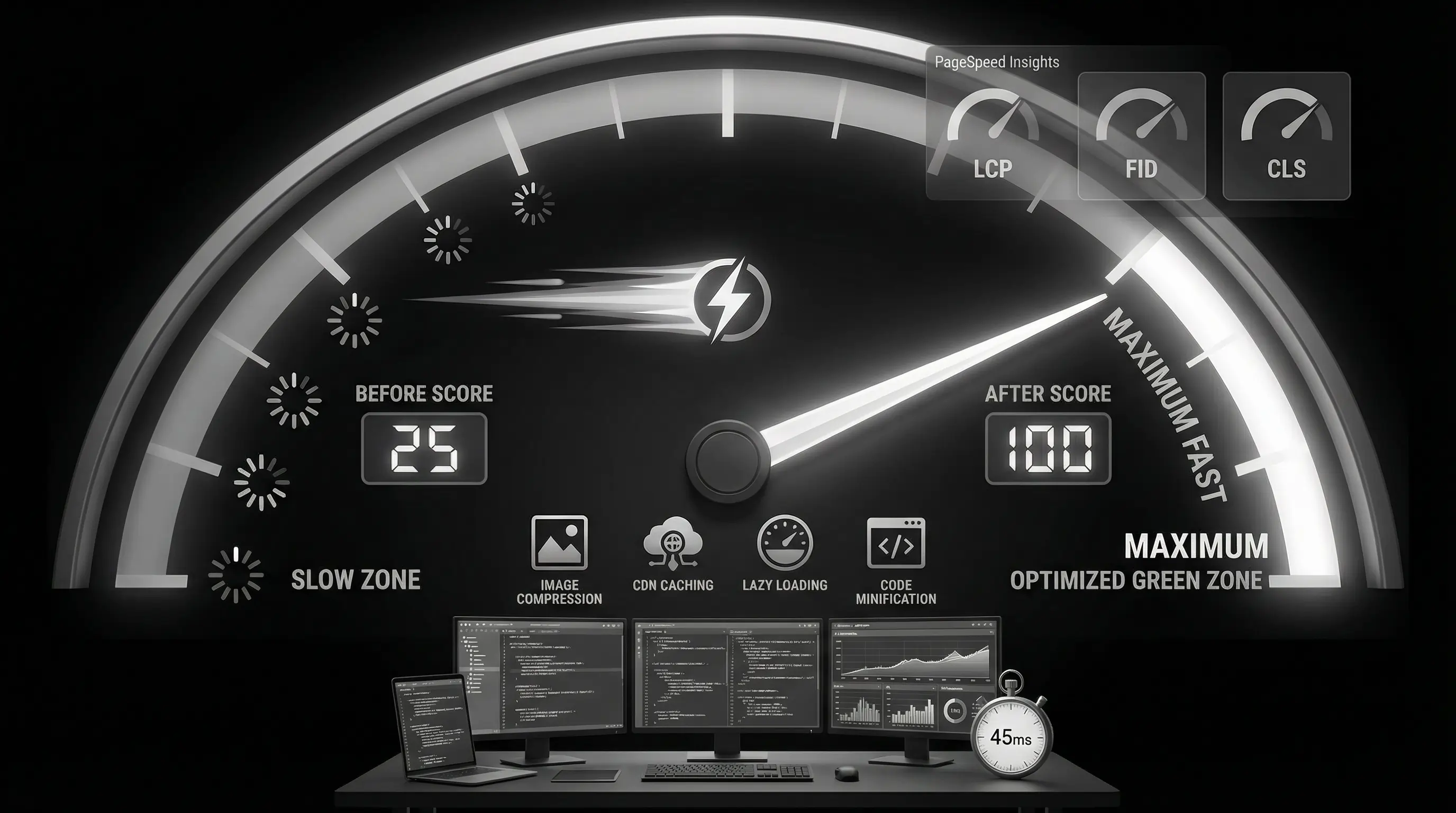
- Core Web Vitals (LCP, FID, CLS)
- Specific issues to fix
- Separate scores for mobile and desktop
Aim for 90+ on desktop, 80+ on mobile.
2. GTmetrix
URL: gtmetrix.com
More detailed analysis:
- Waterfall chart (see what loads when)
- Page size breakdown
- Request count
- Historical tracking
3. WebPageTest
URL: webpagetest.org
Advanced testing:
- Test from different locations
- Different connection speeds
- Video of page loading
- Detailed technical data
4. Chrome DevTools
Built into Chrome browser (F12 → Network tab):
- Real-time loading analysis
- See individual resource sizes
- Simulate slow connections
- Identify blocking resources
Always prioritize mobile speed. Google uses mobile-first indexing, and most of your traffic is probably mobile. Desktop scores are usually 20-30 points higher than mobile for the same site.
Understanding Core Web Vitals
Core Web Vitals are Google's specific metrics for user experience. They directly affect your search rankings.
LCP — Largest Contentful Paint
What it measures: How fast the main content loads
Good: Under 2.5 seconds
Needs Improvement: 2.5 - 4.0 seconds
Poor: Over 4.0 seconds
LCP usually measures the largest image or text block visible when the page first loads. If your hero image takes 5 seconds to appear, your LCP is 5 seconds.
INP — Interaction to Next Paint (Replaced FID in 2024)
What it measures: How fast the page responds to user interactions
Good: Under 200 milliseconds
Needs Improvement: 200 - 500 milliseconds
Poor: Over 500 milliseconds
When a user clicks a button or types in a field, how quickly does something happen? Heavy JavaScript kills INP.
CLS — Cumulative Layout Shift
What it measures: Visual stability (does content jump around?)
Good: Under 0.1
Needs Improvement: 0.1 - 0.25
Poor: Over 0.25
Ever tried to click something and an ad loaded, pushing the button down? That's layout shift. It's frustrating and Google penalizes it.
| Metric | Good | Needs Improvement | Poor |
|---|---|---|---|
| LCP | ≤ 2.5s | 2.5s - 4.0s | > 4.0s |
| INP | ≤ 200ms | 200ms - 500ms | > 500ms |
| CLS | ≤ 0.1 | 0.1 - 0.25 | > 0.25 |
Quick Wins: Fix These First
Before diving into complex optimizations, grab these easy wins:
1. Compress Your Images
Impact: High (often 50%+ page size reduction)
Time: 30 minutes
Images are usually the biggest culprit. A single unoptimized image can be 5MB when it should be 100KB.
How to fix:
- Use WebP format instead of JPEG/PNG (30% smaller, same quality)
- Resize images to actual display size (don't upload 4000px image for 400px display)
- Compress with tools like TinyPNG, Squoosh, or ImageOptim
- Use responsive images (different sizes for different screens)
For WordPress: Install ShortPixel or Imagify plugin for automatic compression.
2. Enable Browser Caching
Impact: High for returning visitors
Time: 15 minutes
Caching tells browsers to store files locally so they don't re-download on every visit.
Add this to .htaccess (Apache):
<IfModule mod_expires.c>
ExpiresActive On
ExpiresByType image/jpg "access plus 1 year"
ExpiresByType image/jpeg "access plus 1 year"
ExpiresByType image/png "access plus 1 year"
ExpiresByType image/webp "access plus 1 year"
ExpiresByType text/css "access plus 1 month"
ExpiresByType application/javascript "access plus 1 month"
</IfModule>
For WordPress: Use WP Rocket or W3 Total Cache plugin.
3. Enable GZIP Compression
Impact: High (reduces text file sizes by 70%)
Time: 10 minutes
GZIP compresses files before sending them to browsers. Most servers support it but don't enable it by default.
Add to .htaccess:
<IfModule mod_deflate.c>
AddOutputFilterByType DEFLATE text/html
AddOutputFilterByType DEFLATE text/css
AddOutputFilterByType DEFLATE application/javascript
AddOutputFilterByType DEFLATE application/json
</IfModule>
4. Reduce Server Response Time
Impact: High
Time: Varies
Your server should respond in under 200ms. If it's slow:
- Upgrade hosting (cheap shared hosting = slow sites)
- Use PHP 8.x instead of older versions
- Enable OPcache for PHP
- Optimize database queries
- Consider managed hosting (Cloudways, Kinsta, SiteGround)
You can optimize everything perfectly, but ₹99/month hosting will still be slow. Good hosting costs ₹500-3000/month. It's the single biggest speed factor you can buy, not optimize.
5. Minify CSS and JavaScript
Impact: Medium
Time: 15 minutes
Minification removes whitespace, comments, and unnecessary characters from code files. A 100KB file might become 70KB.
Tools:
- CSS: cssnano, clean-css
- JavaScript: Terser, UglifyJS
- WordPress: Autoptimize plugin
Advanced Optimization: Images
Images deserve their own section because they're usually 50-80% of page size.
Use Modern Formats
WebP: 30% smaller than JPEG at same quality. Supported by all modern browsers.
AVIF: Even smaller than WebP (50% smaller than JPEG). Newer, growing support.
<picture>
  <source srcset="image.avif" type="image/avif">
  <source srcset="image.webp" type="image/webp">
  <img src="image.jpg" alt="Description">
</picture>
This serves AVIF to browsers that support it, WebP as fallback, JPEG for old browsers.
Implement Lazy Loading
Don't load images until users scroll to them. Massively improves initial load time.
<img src="image.jpg" loading="lazy" alt="Description">That's it. One attribute. Works in all modern browsers.
Exception: Don't lazy load images above the fold (visible without scrolling). They need to load immediately for good LCP.
Use Responsive Images
Serve different image sizes based on screen size. Don't send a 2000px image to a 400px phone screen.
<img
  src="image-800.jpg"
  srcset="image-400.jpg 400w,
          image-800.jpg 800w,
          image-1200.jpg 1200w"
  sizes="(max-width: 600px) 400px,
         (max-width: 1200px) 800px,
         1200px"
  alt="Description">
Use a Image CDN
Services like Cloudinary, ImageKit, or imgix automatically optimize and deliver images from servers near your users.
Benefits:
- Automatic format conversion
- Automatic resizing
- Global CDN delivery
- Real-time transformations
Worth it for image-heavy sites.
Advanced Optimization: CSS and JavaScript
Eliminate Render-Blocking Resources
By default, CSS and JavaScript files in <head> block the page from rendering until they're downloaded.
For CSS:
- Inline critical CSS (CSS needed for above-the-fold content)
- Load non-critical CSS asynchronously
<!-- Critical CSS inline -->
<style>
  /* Only styles for above-the-fold content */
</style>

<!-- Non-critical CSS loaded async -->
<link rel="preload" href="style.css" as="style" onload="this.onload=null;this.rel='stylesheet'">
For JavaScript:
- Use
deferattribute (loads in parallel, executes after HTML parsing) - Use
asyncfor independent scripts (analytics, ads) - Move scripts to end of
<body>
<!-- Defer - loads parallel, executes in order after HTML -->
<script src="main.js" defer></script>

<!-- Async - loads parallel, executes immediately when ready -->
<script src="analytics.js" async></script>
Remove Unused CSS
Most websites load entire CSS frameworks but only use 10-20% of styles. Tools like PurgeCSS remove unused CSS.
This is especially impactful if you're using Bootstrap, Tailwind, or similar frameworks.
Code Splitting (For JavaScript-Heavy Sites)
Instead of one giant JavaScript file, split code into chunks that load only when needed.
For React/Next.js:
// Instead of regular import
import HeavyComponent from './HeavyComponent';

// Use dynamic import
const HeavyComponent = dynamic(() => import('./HeavyComponent'));
Users only download code for the page they're viewing, not the entire app.
Content Delivery Network (CDN)
A CDN stores copies of your website on servers worldwide. Users get files from the nearest server, dramatically reducing load times.
How CDN Helps
Without CDN: User in Chennai → Server in Mumbai → 100ms latency
With CDN: User in Chennai → CDN server in Chennai → 20ms latency
For international audiences, the difference is even bigger.
Recommended CDNs
| CDN | Best For | Pricing |
|---|---|---|
| Cloudflare | Most websites | Free tier available |
| BunnyCDN | Cost-effective high traffic | Pay-per-use, very cheap |
| AWS CloudFront | AWS users | Pay-per-use |
| KeyCDN | Developer-friendly | Pay-per-use |
| Fastly | Enterprise | Premium pricing |
For most sites, Cloudflare's free plan is enough. It provides CDN, DDoS protection, SSL, and basic optimization. Setup takes 15 minutes. No reason not to use it.
CDN Setup (Cloudflare Example)
- Sign up at cloudflare.com
- Add your domain
- Cloudflare scans your DNS records
- Update nameservers at your domain registrar
- Wait for propagation (usually 24 hours)
- Enable Auto Minify and Brotli compression
Database Optimization (For Dynamic Sites)
If your site uses a database (WordPress, e-commerce, custom CMS), database speed directly affects page load.
Database Optimization Tips
1. Clean Up Database
- Delete post revisions
- Remove spam comments
- Clear expired transients
- Delete unused plugins/themes data
For WordPress: WP-Optimize plugin handles this automatically.
2. Add Proper Indexes
Database indexes are like book indexes — they help find data faster. Common tables that need indexing:
- User tables (search by email, username)
- Product tables (filter by category, price)
- Order tables (filter by date, status)
3. Use Object Caching
Object caching stores database query results in memory (Redis, Memcached). Same query = instant response instead of hitting database again.
For WordPress: Redis Object Cache plugin + Redis server
4. Optimize Queries
Bad queries kill performance. Common issues:
- SELECT * instead of selecting specific columns
- Not using LIMIT on large tables
- Multiple queries that could be one
- N+1 query problems
WordPress-Specific Optimization
WordPress powers 40%+ of websites, so it deserves specific attention.
Essential Plugins for Speed
- WP Rocket: Best all-in-one caching plugin (paid, worth it)
- Autoptimize: Free, handles CSS/JS optimization
- ShortPixel: Image compression
- WP-Optimize: Database cleanup
- Perfmatters: Disable unnecessary features
Remove Bloat
WordPress loads lots of stuff you don't need:
- Disable emojis (yes, WordPress loads emoji scripts)
- Disable embeds if not using them
- Remove query strings from static resources
- Disable XML-RPC if not using it
- Limit post revisions
Perfmatters plugin handles all of this with toggles.
Reduce Plugins
Each plugin adds code. Some add a LOT of code.
- Audit all plugins — do you actually use them?
- Replace multiple plugins with one that does everything
- Avoid plugins for things CSS can do
- Check plugin impact with Query Monitor plugin
Use Lightweight Theme
Your theme matters. Some themes load 2MB of CSS/JS before content.
Fast themes:
- GeneratePress
- Astra
- Kadence
- Neve
Avoid themes with "100+ demos" and "50+ plugins included" — they're bloated.
Fixing Layout Shift (CLS)
Layout shift happens when elements move after initial load. Common causes and fixes:
1. Images Without Dimensions
Problem: Browser doesn't know image size until it loads, causing content to jump.
Fix: Always specify width and height:
<img src="image.jpg" width="800" height="600" alt="Description">Or use CSS aspect-ratio:
.image-container {
  aspect-ratio: 16 / 9;
}
2. Ads and Embeds
Problem: Ads load late and push content down.
Fix: Reserve space with min-height:
.ad-container {
  min-height: 250px; /* Expected ad height */
}
3. Web Fonts
Problem: Custom fonts load after text appears, causing text to resize.
Fix: Use font-display: swap:
@font-face {
  font-family: 'CustomFont';
  src: url('font.woff2') format('woff2');
  font-display: swap;
}
4. Dynamic Content
Problem: Content injected by JavaScript pushes other content.
Fix: Reserve space, or insert below the fold.
Mobile Optimization
Mobile performance is harder because:
- Slower processors than desktops
- Often on slower networks
- Smaller screens (but same assets)
Mobile-Specific Tips
1. Reduce JavaScript: Mobile devices struggle with heavy JS. Every KB of JavaScript costs more on mobile.
2. Touch-Friendly: Larger tap targets reduce interaction delay.
3. Viewport Optimization: Don't make users pinch-zoom.
<meta name="viewport" content="width=device-width, initial-scale=1">4. Prioritize Above-the-Fold: Load what's visible first, defer everything else.
5. Test on Real Devices: Chrome DevTools simulation isn't enough. Test on mid-range Android phones (₹10-15K phones, not flagships).
Measuring Results
After optimization, track your improvements:
Before/After Comparison
Test before making changes, then test after. Document:
- PageSpeed score (mobile and desktop)
- Load time (seconds)
- Total page size (MB)
- Number of requests
- Core Web Vitals (LCP, INP, CLS)
Real User Monitoring
Lab tests (PageSpeed) are simulations. Real User Monitoring (RUM) shows actual user experience:
- Google Search Console: Core Web Vitals report (free)
- Google Analytics: Page timing data
- Dedicated tools: SpeedCurve, Calibre, New Relic
Continuous Monitoring
Speed degrades over time as you add content and features. Set up:
- Monthly PageSpeed audits
- Alerts for performance drops
- Regular image audits
- Measure first — use PageSpeed Insights, GTmetrix, WebPageTest
- Core Web Vitals matter — LCP < 2.5s, INP < 200ms, CLS < 0.1
- Images are usually the problem — compress, use WebP, lazy load
- Enable caching — browser caching and CDN caching
- Use a CDN — Cloudflare free tier is excellent starting point
- Good hosting is non-negotiable — cheap hosting = slow site
- Minify CSS/JS — remove unnecessary code
- Defer non-critical resources — load JavaScript with defer/async
- Fix layout shift — specify image dimensions, reserve ad space
- Mobile first — optimize for mobile, it's harder and more important
- Monitor continuously — speed degrades, keep checking
Speed Optimization Checklist
Use this checklist to audit any website:
Images:
- ☐ All images compressed
- ☐ Using WebP format
- ☐ Lazy loading enabled
- ☐ Responsive images implemented
- ☐ Width/height attributes set
Caching & Delivery:
- ☐ Browser caching enabled
- ☐ CDN configured
- ☐ GZIP/Brotli compression enabled
Code Optimization:
- ☐ CSS minified
- ☐ JavaScript minified
- ☐ Critical CSS inlined
- ☐ Render-blocking resources fixed
- ☐ Unused CSS removed
Server:
- ☐ Good hosting (not cheap shared)
- ☐ PHP 8.x (for WordPress)
- ☐ Database optimized
- ☐ Server response under 200ms
Core Web Vitals:
- ☐ LCP under 2.5 seconds
- ☐ INP under 200ms
- ☐ CLS under 0.1
Conclusion
Website speed isn't just a technical metric — it's user experience and business results.
A fast website:
- Ranks higher on Google
- Converts more visitors
- Reduces bounce rates
- Improves brand perception
Start with the quick wins: compress images, enable caching, use a CDN. These alone can double your speed. Then tackle the advanced optimizations as needed.
Remember: perfect is the enemy of good. You don't need a 100 score on PageSpeed. But you do need your site to feel fast to users. Aim for 80+ on mobile, keep improving from there.
Speed is a competitive advantage. While your competitors have slow, bloated sites, yours will be lightning fast. Users notice. Google notices. Your revenue notices.
Need professional speed optimization?
At Arcenik Technologies, we've helped businesses improve their PageSpeed scores from 20s to 90s. Our speed optimization service includes full audit, implementation, and monitoring.
Related reading: Next.js vs React: Which One to Choose in 2026? · WordPress Security: Complete Guide to Protect Your Site in 2026 · our web development services
Get a free speed audit — we'll analyze your site and show you exactly what's slowing it down and how to fix it.