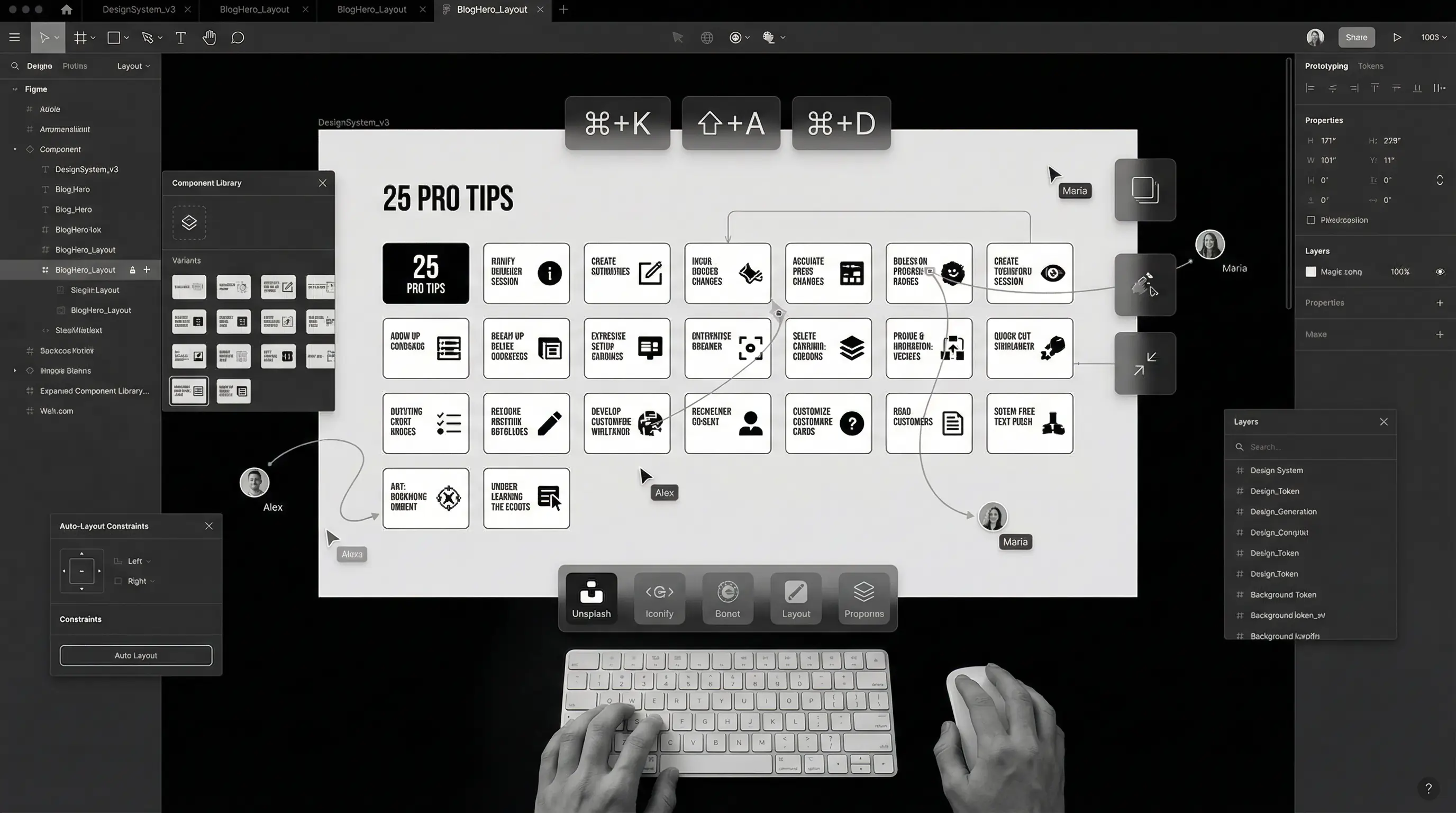
25 Figma Tips That Will Speed Up Your Workflow in 2026
Hidden Figma features, shortcuts, and plugins every designer should know to work 10x faster.

Introduction
You know that designer who finishes projects in half the time you take? The one who makes Figma dance to their tune while you're still clicking through menus?
They're not more talented. They just know the shortcuts, hidden features, and workflow tricks that save hours.
After using Figma since its beta days and watching it evolve into 2026's dominant design tool, I've collected every time-saving trick worth knowing. Not the obvious stuff you'll find in basic tutorials, but the hidden gems that actually speed up your daily work.
These 25 tips will transform how you use Figma. Some will save seconds (that add up to hours), others will completely change your approach to design.
Let's turn you into that fast designer everyone wonders about.
Keyboard Shortcuts That Actually Matter
Everyone knows Cmd/Ctrl+C for copy. Here are the shortcuts that truly accelerate your workflow:
1. Quick Actions (Cmd/Ctrl + /)
Stop hunting through menus. Press Cmd/Ctrl + / and type what you want:
- "Outline" → Outline stroke instantly
- "Flatten" → Flatten selection
- "Plugin name" → Run any plugin
- "Share" → Open share dialog
This single shortcut replaces dozens of others.
2. Scale Tool (K)
Forget manually calculating proportions. Press K and drag to scale everything proportionally — including text, effects, and border radius. Hold Shift to scale from center.
3. Deep Select (Cmd/Ctrl + Click)
Click through nested groups without entering them. Hold Cmd/Ctrl while clicking to select any layer, no matter how deeply nested.
4. Copy Properties Between Objects
Cmd/Ctrl + Alt + C→ Copy propertiesCmd/Ctrl + Alt + V→ Paste properties
Copy just the style without the actual object. Perfect for applying consistent styling.
5. Rename Layers in Bulk
Select multiple layers and press Cmd/Ctrl + R. Type new name with $N for numbering:
- Type:
Button $N - Result: Button 1, Button 2, Button 3...
Print the Figma keyboard shortcuts PDF and keep it beside your monitor for two weeks. After that, these will be muscle memory. The time investment pays off within days.
Hidden Features You're Not Using
6. Select Matching Layers
Select a layer, then:
Cmd/Ctrl + Alt + A→ Select all with same properties- Edit menu → Select all with same... → Choose property
Update all buttons, all headers, all icons at once.
7. Arc Tool for Perfect Curves
Drawing circles? There's a better way:
- Use the Arc tool (find it under shape tools)
- Hold Shift for perfect quarters
- Combine arcs for complex curves
Perfect for progress rings, curved UI elements, custom icons.
8. Math in Input Fields
Any number field accepts math:
- Width:
1920/2→ 960px - Position:
100+24→ 124px - Opacity:
100*0.65→ 65%
Also works with mixed units: 50%+20
9. Paste to Replace
Select any object and paste to replace it while maintaining:
- Size and position
- Constraints
- Layer order
- Applied effects
Game-changer for swapping placeholder content.
10. Table Generator
Create instant tables without plugins:
- Draw a rectangle
- Duplicate (Cmd/Ctrl + D)
- Select all rectangles
- Use "Tidy up" button in toolbar
- Adjust spacing in the dialog
Boom — perfect grid/table in seconds.
Component & Auto Layout Mastery
11. Component Props in 2026
Figma's component properties are incredibly powerful now:
- Text props: Change text without detaching
- Boolean props: Show/hide elements
- Instance swap: Swap nested components
- Variant combinations: Combine multiple states
Set these up once, save hours on every project.
12. Auto Layout Spacing Shortcuts
With Auto Layout selected:
Shift + A→ Add Auto Layout- Arrow keys → Adjust spacing by 1
Shift + Arrows→ Adjust spacing by 10Cmd/Ctrl + Arrows→ Adjust padding
13. Absolute Positioning in Auto Layout
Need to break out of Auto Layout flow? Right-click any child → "Absolute position". Perfect for:
- Notification badges on icons
- Floating action buttons
- Decorative elements
14. Preferred Values in Components
Set preferred values for component instances:
- Select component property
- Set "Preferred values"
- New instances use these by default
Example: Button component always starts with "Click me" text.
 Component properties save hours of repetitive work
Workflow Optimization
15. Branch Like a Developer
Figma branching isn't just for large teams:
- Create branch for experiments
- Try radical changes without fear
- Merge only what works
- Keep main file clean
Solo designers: branch before client presentations. Show options without cluttering main file.
16. Audio Conversations
Instead of writing long comments:
- Click comment tool
- Click audio icon
- Record explanation
- Pin to specific element
3x faster than typing, clearer for complex feedback.
17. Cursor Chat Commands
In cursor chat (when collaborating), type:
/→ See all commands/shrug→ ¯_(ツ)_/¯/tableflip→ (╯°□°)╯︵ ┻━┻/facepalm→ 🤦
Okay, these don't speed up work, but they make it more fun!
18. Version History Time Travel
Lost something? Made a mistake yesterday?
- Right panel → Version history
- Browse by date/time
- Preview changes
- Restore or duplicate from any point
Figma auto-saves every change. Nothing is ever truly lost.
Plugin Power Users
19. Essential Plugins for 2026
Must-have plugins that save hours:
- Figma to Code: Export clean code instantly
- Content Reel: Pull real content/images
- Able: Contrast checker for accessibility
- Figmotion: Animations without leaving Figma
- Automator: Batch operations on steroids
Run plugins faster: Cmd/Ctrl + / then type plugin name
20. Plugin Development
Can't find what you need? Build it:
- Plugins → Development → New Plugin
- Use TypeScript + Figma API
- Test locally
- Publish to community
Basic plugins are surprisingly easy. Automate your repetitive tasks.
Figma's AI features now include "Design Assistant" that suggests layouts, generates placeholder content, and even creates entire components from prompts. Access it via the magic wand icon in toolbar.
Advanced Techniques
21. Smart Animate Everything
Smart Animate isn't just for prototypes:
- Create loading animations
- Smooth hover states
- Micro-interactions
- Parallax effects
Tip: Name layers identically across frames for smooth transitions.
22. Advanced Constraints
Beyond basic pinning:
- Scale: Elements that grow/shrink proportionally
- Center: Always centered regardless of frame size
- Mixed: Left+Right = stretches horizontally
Combine with Auto Layout for responsive components.
23. Variables for Design Systems
2026's biggest feature — Variables:
- Color variables with modes (light/dark)
- Number variables for spacing
- String variables for content
- Boolean variables for states
Change entire design system with one click.
24. Figma Slides Integration
Present directly from Figma:
- Select frames to present
- Switch to Slides mode
- Add transitions, speaker notes
- Present without exporting
Client presentations without leaving Figma.
25. Dev Mode Handoff
Make developers love you:
- Use consistent naming
- Add component descriptions
- Mark assets as "Ready for dev"
- Use measurement annotations
- Enable CSS code generation
Smooth handoff = faster development = happier everyone.
Bonus Tips: Workflow Philosophy
Organize Like a Pro
- Pages: Separate by fidelity (Wireframes → Designs → Prototypes)
- Naming: Use prefixes (01_Homepage, 02_About)
- Colors: Right-click frames to add color coding
- Emojis: Use in page names for visual scanning
Performance Optimization
Figma slowing down? Try:
- Split large files into multiple pages
- Use components instead of duplicating
- Optimize images before importing
- Hide layers you're not working on
- Turn off "multiplayer cursors" when alone
Learning Resources
- Figma YouTube: Official tutorials
- Config: Annual conference videos
- Community files: Learn by exploring
- Figma Forum: Advanced techniques
- Quick Actions (Cmd/Ctrl + /) replaces memorizing dozens of shortcuts
- Scale tool (K) maintains proportions perfectly
- Math in input fields saves constant calculations
- Component properties eliminate repetitive editing
- Auto Layout absolute positioning breaks the flow when needed
- Branch for experiments — even solo designers benefit
- Version history means nothing is ever lost
- Variables are game-changers for design systems
- Dev Mode features smooth handoff friction
- Organize systematically — future you will thank present you
Implementation Plan
Don't try learning all 25 tips at once. Here's a practical approach:
Week 1: Master the basics
- Quick Actions shortcut
- Scale tool
- Deep select
- Math in inputs
Week 2: Component efficiency
- Component properties
- Auto Layout shortcuts
- Bulk renaming
Week 3: Advanced features
- Variables
- Branching
- Smart Animate
Week 4: Workflow optimization
- Essential plugins
- Dev Mode setup
- Organization system
Common Mistakes to Avoid
- Not using components — Updating 50 buttons manually is painful
- Ignoring Auto Layout — It's complex but worth learning
- Poor naming — "Rectangle 123" helps nobody
- No version control — Name your saves meaningfully
- Working in isolation — Figma is collaborative, use it
- Skipping constraints — Responsive design needs them
- Plugin overload — More plugins ≠ better workflow
Conclusion
Speed in Figma isn't about rushing. It's about eliminating friction between your ideas and their execution.
These 25 tips aren't just random shortcuts — they're the accumulated wisdom of thousands of design hours. Each one removes a small friction point. Together, they transform how you work.
Start with the Quick Actions shortcut today. Master one new tip each day. In a month, you'll be that designer everyone wonders about — the one who makes Figma dance.
Remember: tools don't make great designers. But great designers who master their tools? They're unstoppable.
Now stop reading and start practicing. Your next design is waiting, and it'll happen faster than ever.
Want to level up your entire design team's Figma skills?
At Arcenik Technologies, we offer Figma training workshops tailored to your team's needs. From basics to advanced techniques, we'll help your designers work faster and collaborate better.
Related reading: 10 UI Design Trends Dominating 2026 (With Examples) · Landing Page Design Best Practices: Convert More Visitors in 2026 · our UI/UX design services
Book a Figma training session — transform your team's design workflow in just one day.